


No products in the cart.

Discover how CorelDRAW software enhances laser cutting projects with precision design tools, workflow optimization, and professional results for leather crafting.
CorelDRAW is a professional vector graphics editor developed by Corel Corporation, designed to meet the demanding needs of graphic designers, artists, and craftspeople across various industries. This powerful software has become an essential tool for leather professionals who require precision design capabilities for creating patterns, templates, and detailed artwork for leather goods. Unlike raster-based programs that work with pixels, CorelDRAW operates using mathematical vectors, allowing designs to be scaled infinitely without any loss of quality or clarity—a critical feature when working with leather projects that range from small keychains to large upholstery pieces.
CorelDRAW offers an extensive suite of tools specifically beneficial for leather design work. The software includes advanced drawing tools, precise measurement capabilities, and layer management systems that enable craftspeople to create intricate patterns for tooling, carving, and cutting. Users can generate complex geometric shapes, custom typography, and detailed illustrations that translate perfectly to leather surfaces. The program supports numerous file formats, making it compatible with laser cutters, CNC machines, and other digital fabrication equipment commonly used in modern leather workshops. Additionally, CorelDRAW provides color management tools that help designers accurately represent dye colors and finishes, ensuring that digital designs match the final leather product.
For leather professionals, CorelDRAW serves multiple practical purposes throughout the design and production process. Pattern makers use the software to create precise templates for wallets, bags, belts, and saddles, ensuring consistent dimensions and perfect symmetry. The vector-based nature of the program means these patterns can be easily adjusted for different sizes or customer specifications without redrawing from scratch. Leather artisans who specialize in tooling and carving utilize CorelDRAW to design intricate decorative elements, from Western floral patterns to custom logos and monograms. The software's ability to export designs in formats compatible with laser engravers makes it invaluable for creating detailed etchings and cutouts on leather surfaces. Furthermore, manufacturers use CorelDRAW to optimize material usage by arranging pattern pieces efficiently, minimizing waste and reducing production costs.
The adoption of CorelDRAW in leather workshops offers several significant benefits that enhance both creativity and productivity. The precision measurement tools ensure that every component fits together perfectly during assembly, reducing errors and material waste. The ability to save and modify designs digitally creates a valuable library of patterns that can be reused, adapted, or customized for different projects. This digital archive eliminates the need for physical pattern storage and allows for easy collaboration with clients who can review and approve designs before production begins. The learning curve, while present, is manageable for most users, and the software includes extensive tutorials and community resources. For businesses, CorelDRAW represents a one-time investment with perpetual licenses available, though subscription models are also offered for those preferring regular updates and cloud features.
CorelDRAW seamlessly integrates into contemporary leather production environments where traditional craftsmanship meets digital technology. The software's export capabilities allow designs to be sent directly to computerized cutting machines, ensuring absolute accuracy in pattern cutting. When working with laser engravers, the software's control over line weights and power settings enables craftspeople to achieve varying depths of engraving for dimensional effects. The program also facilitates communication between designers and production teams, as technical specifications can be embedded directly into the design files. For custom leather goods makers, the ability to quickly modify existing designs based on customer feedback streamlines the ordering process and improves client satisfaction. This digital workflow reduces production time while maintaining the high-quality standards expected in premium leather goods.
Product purchase offer: Gift Box Templates

Laser cutting technology has revolutionized the leather industry by offering unprecedented precision and versatility. When selecting a laser cutting system for leather materials, understanding the critical features ensures optimal performance, efficiency, and quality output. These features directly impact the machine's ability to handle various leather types, thicknesses, and design complexities while maintaining consistency and minimizing waste.
The laser's power output, typically measured in watts, determines the machine's ability to cut through different leather thicknesses and densities. For leather applications, systems ranging from 30 watts for thin materials to 150 watts for thicker hides provide sufficient cutting capabilities. CO2 lasers, which emit infrared light at a wavelength of approximately 10.6 micrometers, are particularly effective for organic materials like leather because this wavelength is readily absorbed by the material's molecular structure. This absorption creates clean cuts with minimal heat-affected zones, preventing excessive charring or discoloration along the edges. Adjustable power settings allow operators to fine-tune the intensity based on leather type, whether working with delicate lambskin or robust vegetable-tanned cowhide.
High-quality motion control systems ensure accurate reproduction of intricate designs and patterns. Advanced laser cutters feature precision linear guides, stepper motors, or servo motors that position the laser head with accuracy measured in fractions of a millimeter. This precision is essential when cutting detailed filigree work, brand logos, or complex geometric patterns that require exact dimensions. The cutting speed, which can range from slow detailed engraving to rapid through-cutting, should be variable and programmable. Modern systems incorporate digital control interfaces that allow operators to save custom settings for different leather types and project requirements, ensuring consistent results across production runs.
The working area or bed size directly affects production capacity and project flexibility. Laser cutting systems for leather are available in various configurations, from compact desktop units with working areas around 12 by 8 inches to industrial machines exceeding 60 by 40 inches. Larger beds accommodate full hides or multiple smaller pieces simultaneously, improving efficiency for commercial operations. Many professional systems feature pass-through designs that allow materials longer than the bed to be processed in sections. Additional considerations include bed composition—honeycomb structures prevent back-reflection and promote airflow—and material hold-down mechanisms such as vacuum systems or weighted clamps that keep leather flat during cutting to maintain consistent focal distance.
Cutting leather with lasers generates smoke, fumes, and particulates that must be effectively managed for both health and quality reasons. Integrated or external fume extraction systems remove these byproducts from the cutting area, preventing residue accumulation on optics and materials while protecting operator health. Effective ventilation systems include powerful fans measured in cubic feet per minute (CFM) ratings, filtration components for particle removal, and proper exhaust routing. Some advanced systems incorporate air assist nozzles that direct compressed air at the cutting point, blowing away debris and preventing flame-up on the leather surface. These features are particularly important when working with chemically treated or dyed leathers that may release additional compounds during the cutting process.
Compatible software platforms enable seamless translation of digital designs into precise cutting instructions. Professional laser systems support common file formats including vector graphics, allowing designers to work in familiar programs before importing patterns. Advanced features include nesting algorithms that optimize material usage by arranging multiple pieces efficiently on the leather surface, reducing waste and costs. The software should offer distinct control over cutting parameters such as power, speed, and frequency for different design elements—allowing a single project to combine through-cutting, partial scoring, and surface engraving. User-friendly interfaces with preview functions help operators verify designs before committing to cutting valuable leather materials.
Creating an efficient and well-organized workspace is fundamental to producing quality leather designs. Whether you're working on custom patterns, sketching new product concepts, or preparing templates for cutting, your environment directly impacts both creativity and precision. A properly configured design workspace reduces errors, minimizes material waste, and allows you to focus on the artistic and technical aspects of leatherwork without unnecessary distractions or physical strain.
Begin by gathering all necessary tools within arm's reach. Your primary design tools should include quality paper or pattern-making material, transparent rulers, French curves, compasses, and drafting pencils. Keep erasers, sharpeners, and fine-tip markers readily accessible for refining details. If working digitally, ensure your computer or tablet is positioned at eye level to prevent neck strain during extended design sessions. Organize cutting mats, rotary cutters, and leather shears in designated holders to maintain their sharpness and prevent accidental damage.
Storage solutions are equally important. Use shallow drawers or compartmentalized containers to separate different weights of tracing paper, template materials, and carbon transfer sheets. Label each section clearly to avoid wasting time searching for specific items. Store leather samples by type, thickness, and color in vertical racks or hanging files where you can quickly reference them when planning new designs. This systematic approach prevents confusion and ensures you select appropriate materials for each project.
Proper illumination is non-negotiable when creating precise leather patterns. Natural daylight provides the most accurate color representation, so position your workspace near a window when possible. Supplement with adjustable task lighting that eliminates shadows across your work surface. LED lamps with color temperature controls allow you to simulate different lighting conditions, helping you visualize how finished leather products will appear in various environments.
Ergonomic setup prevents fatigue during long design sessions. Your work surface should be at a height that allows your forearms to rest parallel to the floor when seated. Choose a chair with adequate lumbar support and adjustable height. If you frequently switch between drawing and computer work, consider a dual-level setup where digital tools occupy a separate but adjacent surface. Keep frequently used reference materials on angled stands to reduce neck bending, and ensure sufficient space to spread out large pattern sheets without crowding.
Product purchase offer: Laser Cut Office Desk Organizer Files

Modern leather design often combines traditional drafting with digital tools. If incorporating software for pattern making or 3D visualization, calibrate your monitor for accurate color representation of leather tones. Maintain updated design software and keep digital files organized in clearly named folders with version control systems. Backup important pattern files regularly to cloud storage or external drives to prevent loss of valuable work.
Create a seamless workflow between digital and physical processes by keeping scanning equipment or a quality camera nearby for digitizing hand-drawn sketches. Similarly, ensure your printer produces accurate scale prints by testing with known measurements before printing final patterns. Keep a collection of physical templates for commonly used elements like standard strap widths, buckle placements, and curve variations that you can quickly trace rather than redrawing repeatedly.
Many leather designers underestimate the importance of adequate workspace size. Cramped conditions lead to bent patterns, accidental tool damage, and physical discomfort. Allocate at least a four-by-three-foot clear surface for medium-sized projects, with additional space for larger items like bags or garments. Avoid positioning your workspace in high-traffic areas where interruptions disrupt concentration and increase the risk of accidents with sharp tools.
Another frequent error involves neglecting proper ventilation. Even in the design phase, testing adhesives, examining finished leather samples, or working with dyes requires adequate airflow. Position your workspace near ventilation sources or invest in a small fan to maintain air circulation. Finally, resist the temptation to skip routine workspace maintenance. Clean your tools after each session, clear away pattern scraps, and reset your space to baseline organization so each design session begins efficiently without preliminary cleanup.
Laser engraving and cutting leather requires precise digital preparation to achieve professional results. Vector files serve as the digital blueprint that guides the laser cutter, determining where it cuts, engraves, or scores the leather surface. Properly preparing these files ensures clean edges, accurate dimensions, and efficient use of material and machine time. The process involves selecting appropriate file formats, setting correct line weights, organizing layers, and ensuring all design elements are compatible with laser technology.
Vector files differ fundamentally from raster images because they use mathematical paths rather than pixels to define shapes. The most common formats for laser cutting include AI (Adobe Illustrator), SVG (Scalable Vector Graphics), DXF (Drawing Exchange Format), and EPS (Encapsulated PostScript). Each format has specific advantages, with SVG being widely compatible across different software platforms, while AI and EPS preserve more complex design information. When preparing files for leather laser work, ensure all text is converted to outlines or paths, as fonts may not transfer correctly between systems. The file should contain only vector elements, as embedded raster images will not provide the precision needed for cutting operations.
Line thickness, known as stroke weight, communicates crucial information to the laser cutter. For cutting operations, lines should typically be set to the thinnest possible stroke weight, often 0.001 inches or 0.01 millimeters, commonly called a hairline. Thicker strokes may confuse the laser software or result in double-cutting along paths. Color coding serves as an organizational method to differentiate between cutting, engraving, and scoring operations. Many laser systems interpret different colors as separate operations with distinct power and speed settings. Red lines might indicate cuts, black areas could represent engraving zones, and blue lines might denote score marks. Consistency in color assignment prevents errors and allows for batch processing of similar operations across multiple pieces.
The efficiency of laser cutting depends significantly on how paths are organized within the design. Path direction determines where the laser begins and ends each cut, affecting both speed and leather edge quality. Closed paths should have consistent direction, typically counterclockwise for outer boundaries and clockwise for interior cutouts. This helps the laser software calculate optimal tool paths. Nesting refers to the arrangement of multiple design elements on a single sheet of leather to minimize waste. Effective nesting considers grain direction, imperfections in the leather, and adequate spacing between pieces to prevent heat transfer that might scorch adjacent areas. Most laser software includes automatic nesting features, but manual adjustment often yields better material utilization.
Several frequent errors can compromise laser cutting results. Leaving duplicate or overlapping paths causes the laser to trace the same line multiple times, potentially burning through leather or creating uneven edges. Unclosed paths may result in incomplete cuts, leaving pieces partially attached to the sheet. Using groups or compound paths without releasing them can prevent the laser from recognizing individual elements. Failing to check for tiny stray points or hidden elements may cause unexpected laser movements or processing delays. Scale errors represent another critical issue; always verify that dimensions in the vector file match intended real-world measurements, as importing files between programs can sometimes alter scale. Before sending files to the laser, perform a final review by outlining all strokes, checking for open paths with selection tools, and confirming that all elements are ungrouped at the appropriate level for your specific laser software requirements.
When preparing leather designs for laser cutting in CorelDRAW, the quality of your vector paths directly impacts the precision of your final product. Always ensure that all objects are converted to curves before exporting, as this eliminates font dependencies and maintains shape integrity. Use the Shape Tool to inspect nodes and remove unnecessary anchor points that can cause the laser to pause or create burn marks on leather surfaces. Welding overlapping objects into single paths prevents double-cutting, which can damage delicate leather materials and waste processing time. Pay special attention to corner nodes, ensuring they are set to sharp rather than smooth when you need crisp angles in your leather pieces.
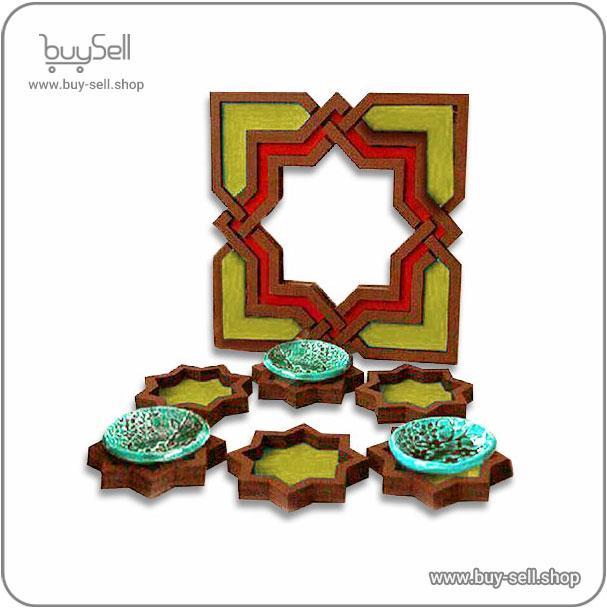
Product purchase offer: Haft Sin laser design
Professional leather laser cutting often requires multiple operations such as engraving, scoring, and cutting through the material. CorelDRAW allows you to organize these operations efficiently using color-coded layers. Assign specific colors to different laser operations, with each color corresponding to particular power and speed settings on your laser cutter. For instance, use red for cutting paths, blue for deep engraving, and black for surface marking. This color mapping system, often called color mapping or layer assignment, enables your laser software to process each operation sequentially without manual intervention. Always maintain hairline stroke widths of 0.001 inches for cutting paths, as thicker lines may be interpreted as areas to fill rather than paths to follow, resulting in unwanted engraving on your leather surface.
Kerf refers to the width of material removed by the laser beam during cutting, which is a critical consideration when designing interlocking leather components or pieces that must fit together precisely. In CorelDRAW, compensate for kerf by using the Contour tool to offset your cutting paths inward or outward by half the kerf width, typically between 0.1 and 0.3 millimeters for leather depending on material thickness and laser power. For tabs and slots that need to fit together, make the male components slightly smaller and female components slightly larger to account for this material removal. Test cuts on scrap leather are essential to determine the exact kerf value for your specific laser settings and leather type before committing to final production.
Proper export settings ensure seamless transfer from CorelDRAW to laser cutting software without losing design integrity. Most laser systems prefer vector formats such as PDF, AI, or DXF files. When exporting to PDF, select the PDF/X-3 preset and disable compression to maintain vector quality. Ensure that all text is converted to curves and that color profiles are embedded correctly so your color-coded operations transfer accurately. Set your document units to match your laser software preferences, typically millimeters or inches, and verify that the artboard size corresponds to your actual leather cutting bed dimensions. Before final export, use the Object Manager docker to confirm all elements are on appropriate layers and that no hidden or locked objects contain errors that might disrupt the cutting process.
Leather can be an expensive material, making efficient layout crucial for cost-effective production. CorelDRAW offers nesting capabilities that allow you to arrange multiple design elements on a single sheet with minimal waste. Manually position pieces closely together while maintaining adequate spacing to prevent heat transfer between cuts that could scorch adjacent areas. Rotate components to fit irregular spaces and consider the grain direction of your leather, as some projects require all pieces to be oriented consistently. Create a boundary rectangle matching your leather sheet dimensions to visualize available space and prevent designs from exceeding material limits. Professional leather workers often achieve material utilization rates exceeding eighty-five percent through careful nesting strategies in CorelDRAW.

 Saeede Bayat
May 04, 2025

 Buy Sell
Apr 20, 2025
 Saeede Bayat
Apr 28, 2025
 Saeede Bayat
Apr 23, 2025
 Buy Sell
Oct 25, 2025

Subscribe to the Buy Sell newsletter and enjoy its benefits.